PowerShell – Isolating Properties

For me, when starting to write a script, I usually want to isolate a my object down to the subset of what I want to perform my task on. So I might start with something like this:

Get-adcomputer -filter * -properties *| Where-Object {$_.operatingsystem -like “*server*” }|Select-object name

This is what I use to get all the servers in my small environment based on the operating system property having the work “Server” in it and then isolating the name.  But over time I have found an easier way to do this.

(get-adcomputer -filter * -properties *| Where-Object {$_.operatingsystem -like “*server*” }).name

By simply putting the property you want on the outside of the parentheses, you get the same result without having to use Select-Object  This is my simple way of visually representing what I am isolating, and starting out that was very helpful.

Another way to do this once an object has been created is simply stating your object dot property, like this:

$object.name

or for another property

$object.favoritecolor

One thing to keep in mind though is that you now have a set of objects with only one property, the Name. This can be tough when you are moving to the next cmdlet and although they both have the Name property, it fails. This is because you have stripped all the other properties away by either of the above 2 methods.

So if you want to isolate a property but keep the objects in tact, you can use

get-adcomputer -filter * -properties *|Select-object -expandproperty name

This was something that took me some time to grasp so hopefully this helps.


Powershell-Windows 7 and Printers

So my boss comes to me and says “Doug, We have these fancy new print servers but no one is on them.  What are our options to get them on there?”  I replied “We can always try to find when most users were on, ready to stop what they are doing and let us make the adjustment,” I said just before we both started laughing hysterically.  So I looked at AD and although we could add printers this way, it would not let the user make any adjustments, and that was a problem.  So I was time to turn to PowerShell.

Of course as I started looking into this I came across a lot of wonderful ways to do this in Windows 8 and 10, but the PowerShell infrastructure was not there for Windows 7.  So I took inventory of what we had to work with in this case.  We had WMI, PowerShell, and standard Windows tools.  I started by looking for a way to get my information on my printers.

Get-WmiObject -class win32_printer | Where {$_.network -eq $false}

Then I looked at way to add the printers with Don Jones echoeing “the standard Windows stuff works in Powershell.  Don’t try to reinvent the wheel.”  So I came across this little dity:

https://technet.microsoft.com/en-us/library/ee624057(v=ws.11).aspx

I played with the switches as sometimes my printers would show and sometimes not, until  I settled on this line:

rundll32 printui.dll PrintUIEntry /ga /n”\\<PrintServerName>\<PrinterName>”

Deleting the local version was a little harder.  There were always “in use” or “access denied” messages.  But since I was already working with WMI, why not look into the methods as well as the properties.  I then used a simple WMI method

$_.delete()

and they were gone.  Now to create a process for resetting the default, a few more comparison operators, added to a GPO and Bam!

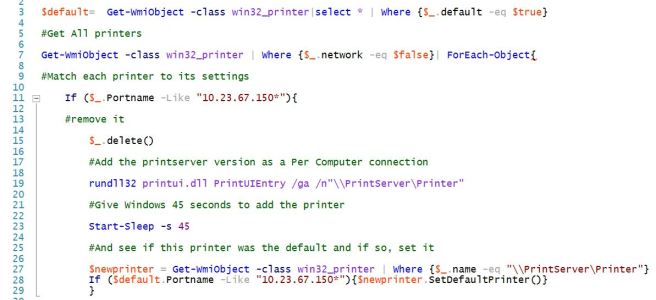
#get the Default Printer

$default= Get-WmiObject -class win32_printer|select * | Where {$_.default -eq $true}

#Get All printers

Get-WmiObject -class win32_printer | Where {$_.network -eq $false}| ForEach-Object{

#Match each printer to its settings

If ($_.Portname -Like “10.23.67.150*”){

#remove it

$_.delete()

#Add the printserver version as a Per Computer connection

rundll32 printui.dll PrintUIEntry /ga /n”\\PrintServer\Printer”

#Give Windows 45 seconds to add the printer

Start-Sleep -s 45

#And see if this printer was the default and if so, set it

$newprinter = Get-WmiObject -class win32_printer | Where {$_.name -eq “\\PrintServer\Printer”}
If ($default.Portname -Like “10.23.67.150*”){$newprinter.SetDefaultPrinter()}
}

Better formatted screenshot at beginning of post.

A couple of notes.  The pause is there since the Rundll32 command is not actual PowerShell, it does not wait until the command is done.  It will just come back and say “not found” when it tries to do the remainder of the script.  The other thing is I used portnames instead of actual names.  This is due to in our environment, users change the names of the local printers often, but not the portnames. I had to hardcode each printer as we have number of software based printers on our machines and I wanted it to only install the printers they had before.

Please feel free to let me know and thoughts or questions.  Hope this is helpful!
PowerShell – My Favorite Starter Resources

Once you start playing with the different basic features of PowerShell, you may need to start somewhere continue your journey.  There are a number of resources out there on a number of topics that make it useful.

For video learners, I would first start with the Youtube videos by Don Jones called PowerShell in a Month of Lunches.  I recommend anything by Don Jones as I absorb more from his presentation style.  The Microsoft Virtual Academy has a number of videos including the PowerShell 3 Jumpstart which goes over a number of core concepts.

If books are more your thing, then the latest book of the same name PowerShell in a Month of Lunches is often recommended.I am just getting started on the latest edition myself.

And for Podcasts, the official podcast of PowerShell.org, the PowerScripting Podcast has a number of good episodes.  The first few are more focused on getting you started.  After that they become more focused on the people involved in PowerShell and the things they are doing with it.  They are recording less frequently now but are still have a lot worth hearing.  As for me, I also like the other technologies that come up.

Now go make the IT world a better place……or learn how to shut all your colleagues systems down all at once, whatever makes you happy.

Doug – The Excitable Nerd


PowerShell – Where to Start

For some time as I started to use PowerShell, I would often use is for minor tasks but would never try to go deeper due to how long it was taking me to write basic scripts.  My saving grace was getting to know the basic features of the shell and the ISE.

The first thing is getting to know the help system.  Help and Get-help are the two in-shell ways to get help, and both behave slightly differently.  The parameters -full for full display of the help files and -examples to see the exact syntax are my favorites.  And should you want to see the internet version of your help page, -online will take you there. There are also a ton of information on various related topics in the About_ topics.  Just type “help  about*” to see a list of the topics.

Next, Learning the features of the shell really sped things up.  Tab completion is a life saver.  Just type the first couple of letters of what you want and hit the Tab key and it will start cycling though the options of what matching terms fit in the location you are currently typing.  Tap the Tab key again for the next option.  This can be helpful in both speeding up typing and in seeing what options are available at any given point.  This also work in the scripting window of the ISE or Integrated Scripting Environment.  Also, using the up arrow on the command line to get the last few commands that were entered is also very helpful.

The last big help to me was the “Get-member” cmdlet.  At many points in a command line you can type “|get-member” or “|gm” to get what the properties and methods of manipulation that you have for the current piece of information, or object.  This can be very useful in linking your command to the next process you want to accomplish.

I would suggest working with two of the easiest to work with, get-service and get-process. Simply type them, get help for them and then “pipe” (the term for sending objects to the next command via the |) them to get-member to see what you can do and get from them.

Good luck and drop me a line if I can help.