So my boss comes to me and says “Doug, We have these fancy new print servers but no one is on them. What are our options to get them on there?” I replied “We can always try to find when most users were on, ready to stop what they are doing and let us make the adjustment,” I said just before we both started laughing hysterically. So I looked at AD and although we could add printers this way, it would not let the user make any adjustments, and that was a problem. So I was time to turn to PowerShell.
Of course as I started looking into this I came across a lot of wonderful ways to do this in Windows 8 and 10, but the PowerShell infrastructure was not there for Windows 7. So I took inventory of what we had to work with in this case. We had WMI, PowerShell, and standard Windows tools. I started by looking for a way to get my information on my printers.
Get-WmiObject -class win32_printer | Where {$_.network -eq $false}
Then I looked at way to add the printers with Don Jones echoeing “the standard Windows stuff works in Powershell. Don’t try to reinvent the wheel.” So I came across this little dity:
https://technet.microsoft.com/en-us/library/ee624057(v=ws.11).aspx
I played with the switches as sometimes my printers would show and sometimes not, until I settled on this line:
rundll32 printui.dll PrintUIEntry /ga /n”\\<PrintServerName>\<PrinterName>”
Deleting the local version was a little harder. There were always “in use” or “access denied” messages. But since I was already working with WMI, why not look into the methods as well as the properties. I then used a simple WMI method
$_.delete()
and they were gone. Now to create a process for resetting the default, a few more comparison operators, added to a GPO and Bam!
#get the Default Printer
$default= Get-WmiObject -class win32_printer|select * | Where {$_.default -eq $true}
#Get All printers
Get-WmiObject -class win32_printer | Where {$_.network -eq $false}| ForEach-Object{
#Match each printer to its settings
If ($_.Portname -Like “10.23.67.150*”){
#remove it
$_.delete()
#Add the printserver version as a Per Computer connection
rundll32 printui.dll PrintUIEntry /ga /n”\\PrintServer\Printer”
#Give Windows 45 seconds to add the printer
Start-Sleep -s 45
#And see if this printer was the default and if so, set it
$newprinter = Get-WmiObject -class win32_printer | Where {$_.name -eq “\\PrintServer\Printer”}
If ($default.Portname -Like “10.23.67.150*”){$newprinter.SetDefaultPrinter()}
}
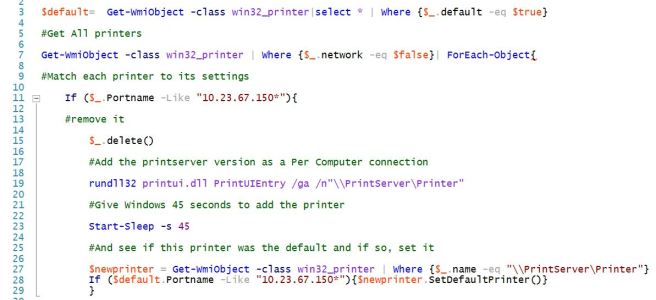
Better formatted screenshot at beginning of post.
A couple of notes. The pause is there since the Rundll32 command is not actual PowerShell, it does not wait until the command is done. It will just come back and say “not found” when it tries to do the remainder of the script. The other thing is I used portnames instead of actual names. This is due to in our environment, users change the names of the local printers often, but not the portnames. I had to hardcode each printer as we have number of software based printers on our machines and I wanted it to only install the printers they had before.
Please feel free to let me know and thoughts or questions. Hope this is helpful!
 The Excitable Nerd